> For the complete documentation index, see [llms.txt](https://docs.neuron.world/llms.txt). Markdown versions of documentation pages are available by appending `.md` to page URLs; this page is available as [Markdown](https://docs.neuron.world/node-builder-software/tutorial-4-setup-a-buyer-node.md).
# Tutorial 4: Setup a buyer node
## What You'll Learn
By the end of this tutorial, you'll have:
* ✅ Built a working Neuron buyer program for IoT data
* ✅ Created a "buyer" that receives live aviation (ADSB) data
* ✅ Connected with a seller bot on Discord
* ✅ Seen real peer-to-peer data exchange in action
## Before You Start
Make sure you have:
* ✅ Completed the [Installation](/node-builder-software/installation.md) tutorial
* ✅ NodeBuilder running at `http://localhost:1880`
* ✅ Your Hedera credentials saved and ready
* ✅ Discord account (you'll need Beta OG status)
* ✅ About 20 minutes of time
:octagonal\_sign: **Important:** These tutorials are for Neuron Beta OGs. If you don't have Beta OG status in Discord, you won't be able to complete this tutorial.
### Setup your environment for running in server mode
When you are buying data, your Neuron Node runs in a "server mode". This is different from when you are selling. Here's why this step is crucial for buyers:
**The seller always initiates the connection.**
You must configure port forwarding on your router to allow sellers to connect to you directly; this is necessary because sellers initiate the connection after receiving a signal from your buyer node.
**🚫 Action Required: Configure Port Forwarding**
1. Access your router's administration page.
2. Find the "Port Forwarding," "Virtual Servers," or similar section. (Consult your router's manual if you're unsure.)
3. Create a rule to forward UDP ports **61336-61346** to your computer's local IP address. Ensure the rule forwards the external ports to the same internal ports (e.g., external 61336 → internal 61336).
4. Save the changes on your router.
Once you have configured port forwarding, you can proceed to load and run the Neuron NodeBuilder software.
## What We're Building
We'll create a simple program that "buys" live aviation data (ADSB) from a seller. In this first step, we'll receive the raw data as a JSON stream and view it in our debug console.
Let's start with a clear canvas, a new flow, to build our first buyer program.

🚀 Let's do it: Set up the backbone
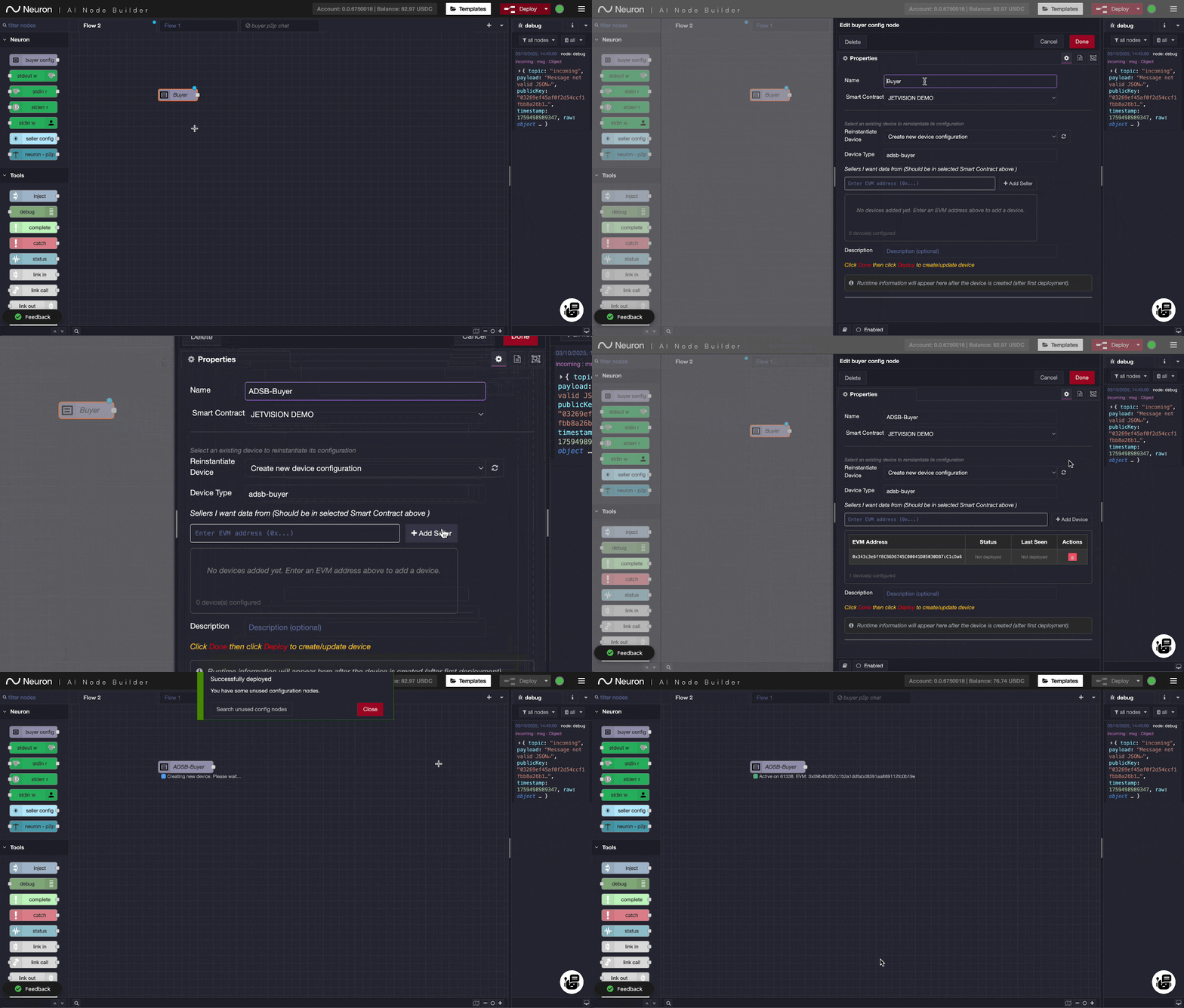
### Action 1: Drag a Neuron "buyer config" node into the canvas
This node holds basic configuration data and is a one-off process you have to complete. What it does is set up account information for that particular node, which is separate from your main account (the one you created earlier upon registration).
This is similar to the seller node we created before, but this time **we need to specify who we want to buy data from**. We will use a test seller that Neuron has already set up and is driven by a bot in Discord. This seller provides a stream of ADSB data.
* Double click it and
* Write a memorable name and descriptive device type entry into the relevant fields.
* Type in the following EVM address `0x343c3e6ff8C86D6745C00041D05030D87cC1cDa6` into the "sellers I want data from" field and hit the \[+Add Seller] button. This is our bot's ADSB-Seller address, which is configured to stream aviation data back to you.
* Hit the red Done button
* Deploy the builder to create it.
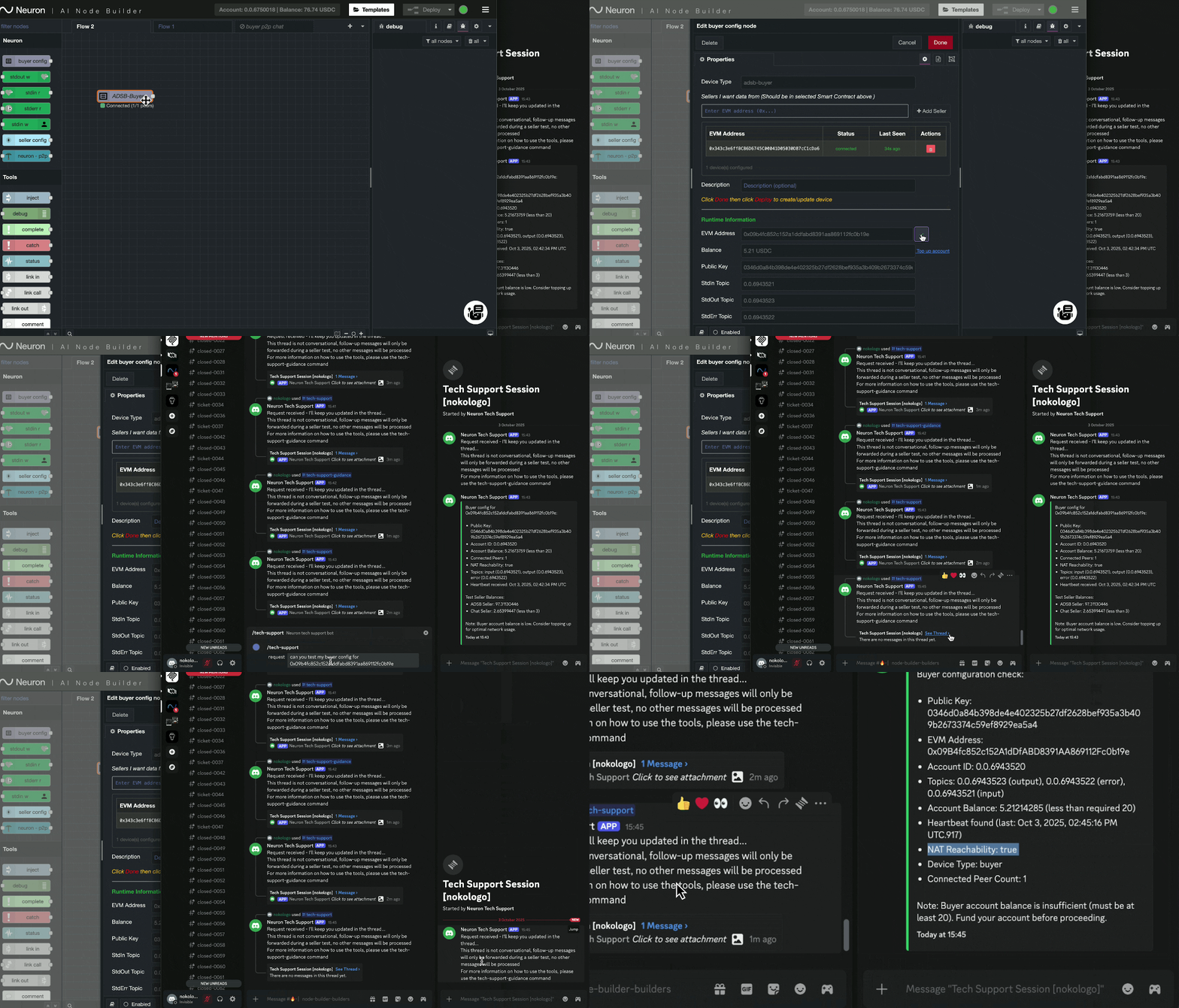
### Action 2: Check if your buyer has a heartbeat and whether the node is publicly reachable.
We need to test if the buyer config is up and running. For this, we need to make sure that it has a heartbeat and that it is a publicly reachable node.
To do so:
* Get your buyer's EVM address by double-clicking the buyer configuration
* Go to the Discord bot and type `\tech-support test my buyer's configuration at `
* You are expected to see the *nat-reachability status to be set to true*; otherwise, you cannot continue with the buying process.
> 💡 **Quick Reference: Discord Bot Access**
>
> The Discord bot is located in the **#node-builder-builders** channel on the Neuron Discord server.
>
> * **Discord Server:**
> * **Channel:** #node-builder-builders
> * **Bot Commands:** Use `/tech-support` followed by your command
>
> For detailed instructions on how to interact with the Discord bot, see the [Hello World tutorial](/node-builder-software/your-first-program-hello-world.md#action-5-communicate-our-evm-address-to-the-other-side-the-buyer) which covers Discord bot communication in detail.
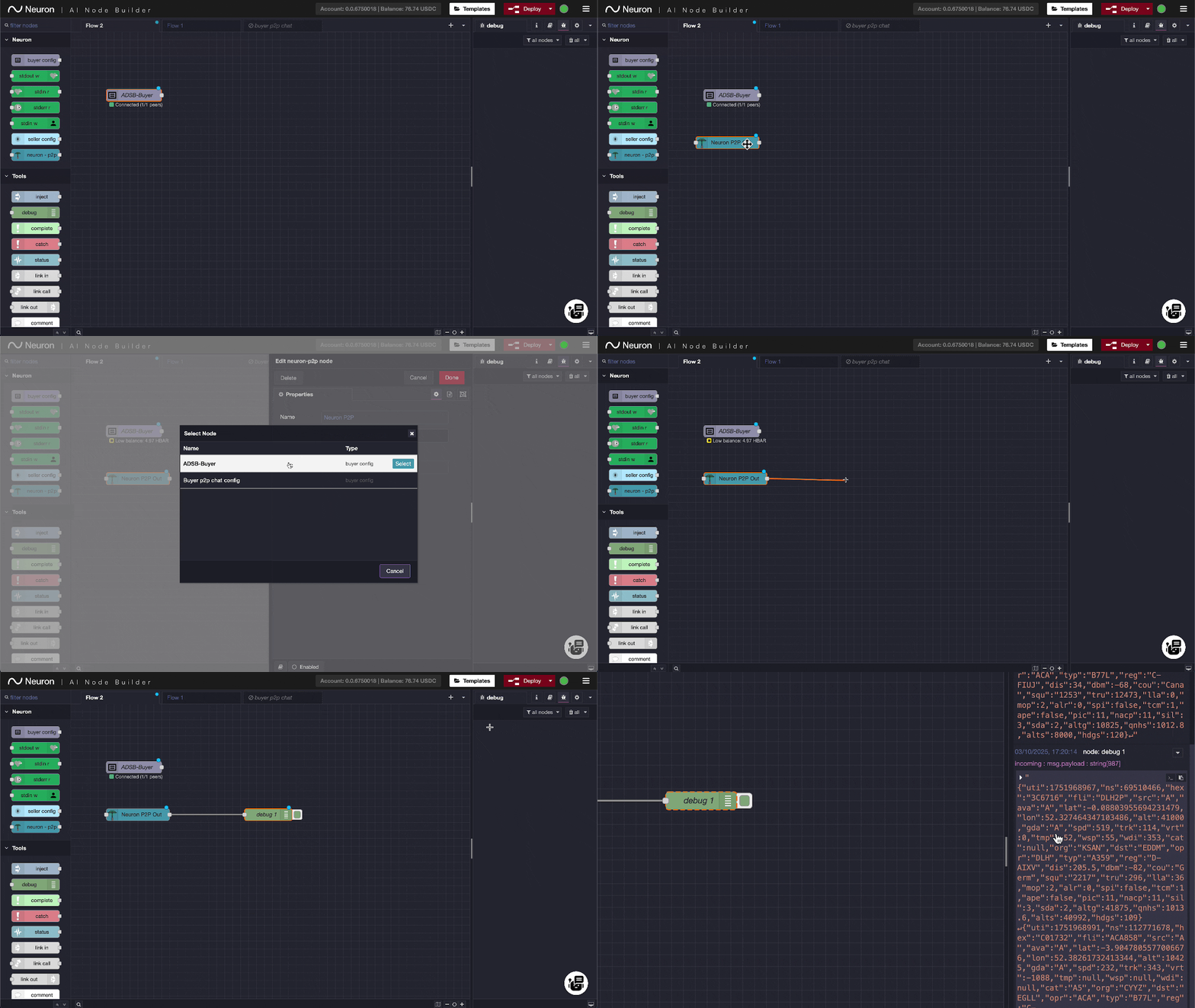
### Action 3: Drag a "neuron p2p out" node into the canvas and connect it to a debug node and deploy
* Drag the p2p out node into the view
* Double-click it to link it to the configuration node (select the configuration node's name)
* Drag the right-hand handle to create a debug node
* Hit the deploy button
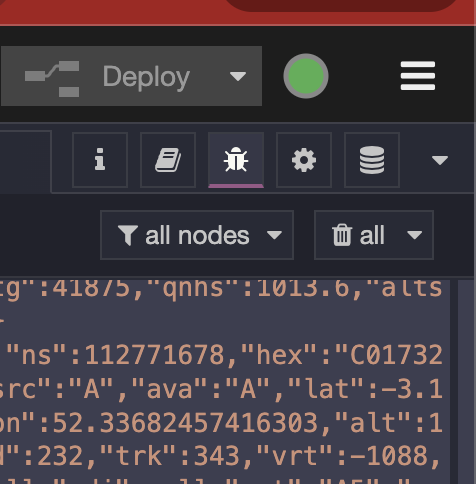
* Make sure the debug view is visible in the right-hand panel
* If the configuration node is connected to the seller node, then you should see a raw ADSB stream in your debug view.
## Exercise for the Reader
🤔 **Challenge yourself to solve this step by step!**
In [Tutorial 1](/node-builder-software/tutorial-1-sell-jv-adsb-data.md), we created a solution that allows you to **sell** your ADSB data to a bot and display it on a map. Here in Tutorial 4, we did the **opposite** - we're **buying** ADSB data from a seller.
**Your Challenge:** Can you take the raw JSON data you're now receiving and display it on a map, just like we did in Tutorial 1?
### 🎯 Try to Solve It Yourself First
**Think about what you need to do:**
1. You're receiving ADSB data as JSON through your buyer node
2. You need to process this data and send it to a map visualization
3. You've seen how this works in Tutorial 1 - can you reverse-engineer the solution?
**Start by asking yourself:**
* What nodes did Tutorial 1 use to create the map?
* Can you reuse any and copy them into this solution?
* How can you connect your buyer's data output to those same visualization nodes?
* What's the difference between selling data TO a buyer vs. buying data FROM a seller?
### 🛠️ Give It Your Best Shot
Try building the solution yourself by:
* Adding the necessary nodes to process and visualize the data
* Connecting your buyer node's output to the mapping components
* Testing and debugging until you get planes showing on the map
### 🆘 If You Get Stuck...
**Only if you've tried and can't figure it out**, you can use the ready-made template:
1. Click the **"Templates"** button in NodeBuilder
2. Look for **"jetvision-buyer"** template
3. Import it to see how the complete solution works
**Or import directly from GitHub:**
* Visit: `https://raw.githubusercontent.com/NeuronInnovations/neuron-node-builder/refs/heads/master/templates/jetvision-buyer/flow.json`
* Copy the code and import it via **"Insert > Import"**
### 💡 What You'll Learn
By attempting this yourself first, you'll gain a much deeper understanding of:
* How data flows through the Neuron network
* The relationship between buyer and seller implementations
* How to build complete data processing pipelines
* The importance of understanding data flow direction
## What You Just Accomplished
You've built a complete peer-to-peer commerce system! Your program automatically:
* Listens for ADSB data being sold on the Neuron network
* Handles seller connections and data delivery
* Displays the bought data as a JSON stream in your debug console
## Common Problems & Solutions
**Problem:** Bot says "No heartbeat" or shows old timestamp
* **Solution:** Make sure you clicked "Deploy" and see "Active" status on your buyer node
**Problem:** Bot doesn't respond to commands
* **Solution:** Check your EVM address is copied correctly (no extra spaces)
**Problem:** NodeBuilder shows "Connecting..." forever
* **Solution:** Check your internet connection, try refreshing the browser, kill the process and restart
**Problem:** Can't find the Discord channel
* **Solution:** Make sure you have Beta OG status and joined the correct server
**Problem:** Reachability is false
* **Solution:** Check if your router is letting the port range through
## Next Steps
Now that you are receiving ADSB data, the next step is to visualize it. In the next tutorial, we will learn how to parse this JSON data and display the planes on a world map.